Updating Config FF on Android means replacing the installed version with a newer build while keeping your setup routine intact. The process is simple when you follow the same order each time: check what you have, get the new file, install it over the old app, and confirm your settings still look right.
Many update problems come from rushing. A half finished download, a skipped permission prompt, or a phone low on storage can interrupt an otherwise easy update. A few minutes of preparation removes nearly all of those risks before you tap anything.
When you are ready, open the Config FF setup app page to follow the current layout of the site, then use the Config FF download page to get the latest file for your phone. Keeping one trusted route for updates makes the habit easy to repeat.
Check Your Current Version First
Before updating, open the app and note the version shown in its information area, and compare it with the version listed for the new file. If the numbers match, you are already current and there is nothing to install. This quick check saves you from reinstalling the same build by mistake.
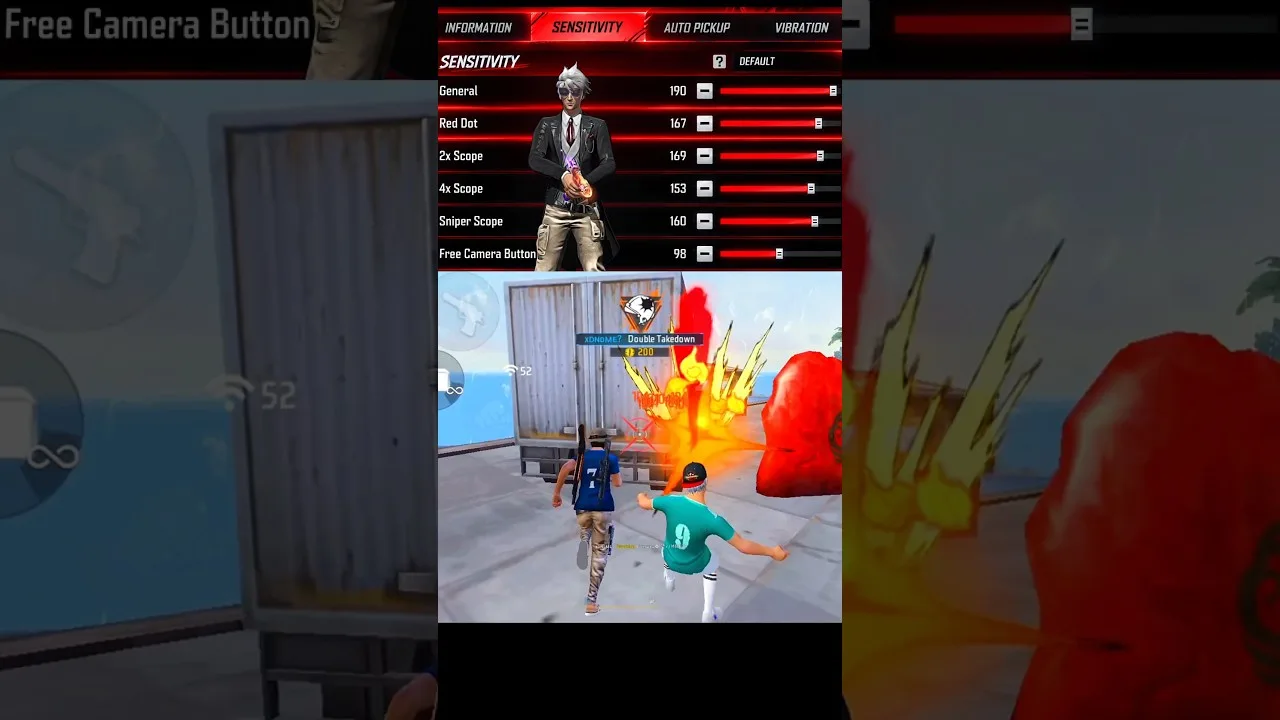
It also helps to note any settings inside the app that you rely on daily, such as a sensitivity group you always return to. If anything looks different after the update, that short note tells you exactly what to restore instead of guessing from memory.
Download the New File Cleanly
Download the update on a stable connection and wait until the file finishes completely before opening it. Interrupted downloads are a common cause of install errors, because Android cannot use a partial APK file. If your connection drops, delete the partial file and download again from the start.
Make sure your phone has free space beyond the file size itself. Android needs working room to unpack and install an app, so clearing a little extra space beforehand is a simple way to avoid a failed update at the final step.
Install Over the Existing App
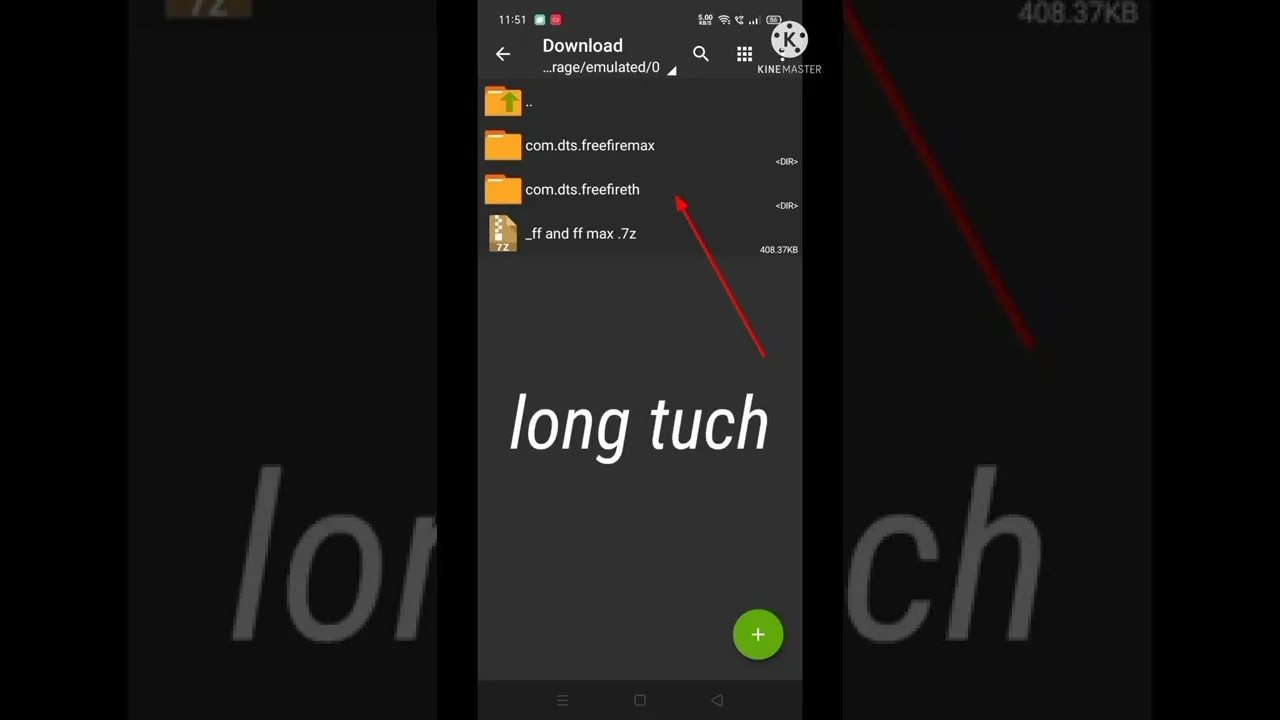
Open the downloaded file and allow the installation permission if Android asks. Installing over the existing app is the normal update path: the new build replaces the old one in place, and your place in the app stays familiar when you open it again.
If the install seems stuck, do not keep tapping the file. Restart the phone once, check storage again, and run the installer a single time. The steps in how to install Config FF on Android walk through this same permission flow in more detail for first time users.
Check Your Settings After Updating
After the update, open each section you use and confirm the values still match what you expect. Most updates leave your routine untouched, but a quick review costs little and catches the rare case where a section has reset or moved. Compare against the note you made earlier.
Then play a short practice session before a serious match. A few minutes of movement and aiming checks confirm that everything feels normal on the new build, and you can return to your usual routine with confidence instead of discovering a surprise mid game.
If the Update Does Not Install
When an update refuses to install, the usual causes are an incomplete file, low storage, or a permission that was denied. Work through those three in order: download the file again, free some space, and allow the installer permission when prompted. Most failed updates resolve at one of those steps.
If problems continue after that, the Config FF not working fixes article collects the common error patterns and their solutions in one place, so you can match your symptom to a known cause instead of trying random changes.
It is also worth deciding on a simple update rhythm. Checking for a new build at a calm moment, such as the start of the week or before a long play session, beats updating in a hurry between matches. A planned update has time for the version check, the clean download, and the settings review, while a rushed one usually skips at least one of them and creates the very problems players then blame on the new build.
Keeping a Simple Update Record
A one line record for each update saves confusion later. Note the version you installed, the version it replaced, and whether your settings needed any correction afterwards. When a future problem appears, that little history tells you whether it began with a particular build or was already present before you changed anything.
The record also protects you from circular troubleshooting. Without it, players sometimes reinstall the same version twice or chase a settings fix for what was really an unfinished install. With it, every update becomes part of a clear timeline, and support style questions, such as what changed and when, always have a factual answer ready.
A last small habit completes the routine: after a successful update and settings check, delete the downloaded installer file once you are sure everything works, or file it away clearly if you prefer keeping it. A downloads folder full of similar looking APK files invites the classic mistake of installing an old build later by accident. One current file, clearly the current one, keeps every future update simple and removes a whole category of confusion before it can start.
Final Thoughts
Updating Config FF is a short routine once you standardise it: check the version, download cleanly, install over the old app, and verify your settings. Done in that order, updates stay boring in the best way, and your setup remains ready whenever you open the game.