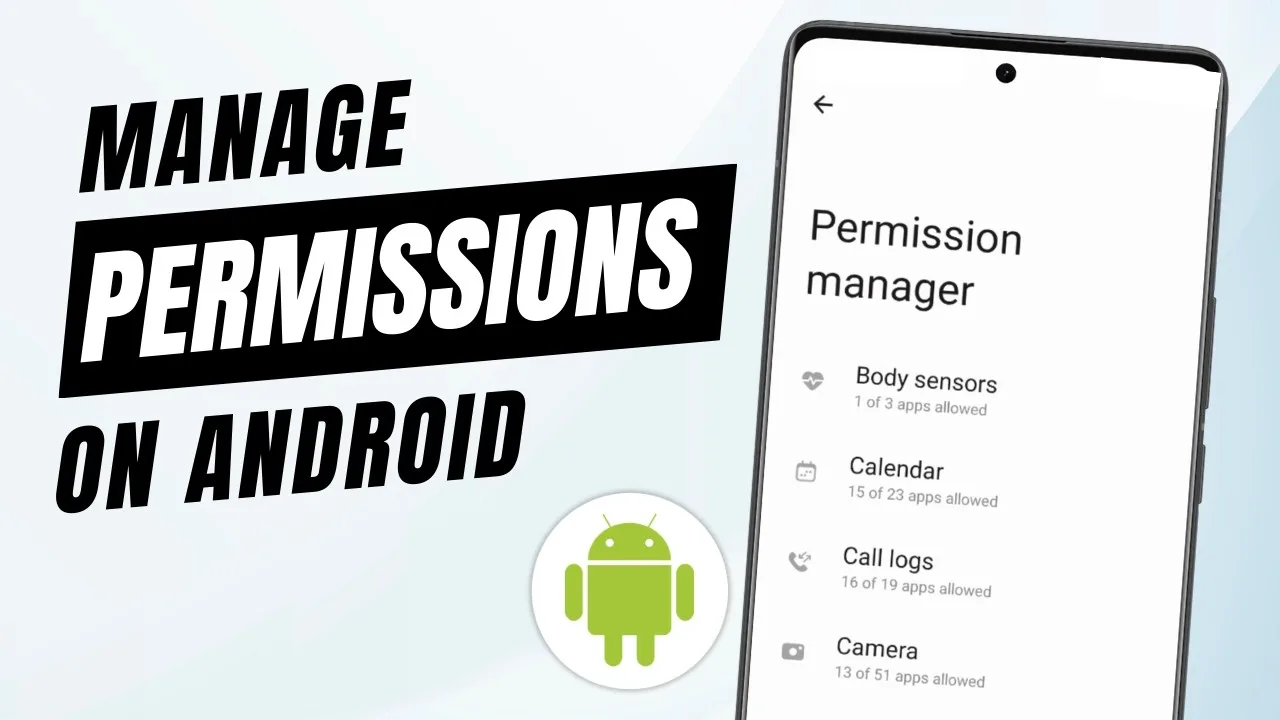
Permissions are the Android controls that decide what an app may access on your phone, such as storage or notifications. Config FF, like other settings oriented tools, works within that system, and understanding the permission screens puts you in charge of the relationship from the first install onward.
Many users tap through permission prompts without reading them, then feel unsure about the app later. A few minutes spent learning what each prompt means removes that uncertainty completely, and Android lets you review or change every choice whenever you like.
When you use the Config FF APK installer for Android from this site, the Config FF download page is where the install begins, and the prompts you meet during that process are the subject of this guide. Knowing them in advance makes installation calm instead of confusing.
The Installation Permission Explained
The first prompt most users meet is Android asking whether your browser or file manager may install apps from that source. This is a standard Android gate for APK files, and it belongs to the app doing the installing, not to Config FF itself. You grant it to complete the install, and you can revoke it afterwards in settings.
To review it later, open your phone settings, find the special access area for installing unknown apps, and check which apps hold the permission. Keeping that list short, limited to the browser or file manager you actually use, is a tidy habit for any Android owner.
Storage Access and Why It Appears
Settings tools deal with files, so storage related access can appear when the app reads or saves configuration material. On modern Android versions, this access is scoped and limited rather than a free pass to the whole phone, and the system shows you the state of the permission in the app info screen at any time.
If you ever feel unsure, open the app info page for Config FF and read the permissions list there. Anything you do not recognise can be researched before you change it, and the walkthrough in how to install Config FF on Android covers the install flow that leads to these screens.
Reviewing Permissions in Android Settings
Android keeps every permission decision in one place. Open settings, go to the apps list, choose Config FF, and open its permissions page. Each permission is listed with its current state, and tapping one lets you allow it, restrict it, or set it to ask each time where Android supports that choice.
Make this review a quick habit after any major update, whether of the app or of Android itself. Updates occasionally reset or introduce prompts, and a thirty second check keeps your earlier decisions intact instead of leaving them to defaults you never chose.
Keeping Your Setup Habits Tidy
Good permission habits pair with good file habits. Keep your downloaded files organised, delete partial downloads you will never use, and keep a note of the settings values that matter to you. Order on the phone makes every review faster, because you can see what belongs to what.
The broader picture of what the app does with its sections is covered in the Config FF features guide, which is worth reading alongside this guide. Knowing what each section is for makes every permission prompt easier to judge on its merits.
Signs Something Needs a Second Look
Prompts that appear at odd moments, such as a permission request while the app is closed or unrelated to anything you tapped, deserve a pause. Close the prompt, open the app info screen, and review the state of things calmly before allowing anything new.
If behaviour ever seems genuinely wrong, the safe sequence is simple: note what you saw, check for an app update, and reinstall cleanly if the odd behaviour continues. A clean reinstall from your usual source resets the relationship to a known state, and your recorded settings values can be re-entered in minutes.
It helps to separate two ideas that often get merged: the permissions an app holds, and the trust you place in your download source. Permissions are visible and changeable in settings at any time, and this guide has shown where they live. Source habits are the other half of staying in control, and they amount to using one consistent place for the app and its updates so you always know what you installed.
Teaching the Same Habits to New Players
If you help friends set up the app, pass these habits along with the settings advice. Show them where the permissions page lives, how to review the install permission, and how to check the app info screen after an update. Two minutes of teaching at setup time prevents the vague unease that otherwise follows players for months.
New players often accept every prompt at maximum speed because the screens feel technical. Reassure them that nothing on those screens is rushed by the phone itself. Every prompt can be read slowly, every choice can be revisited later, and a careful first setup is simply part of learning to own an Android device properly.
Keep in mind that Android itself improves these controls over time, adding finer choices such as one time permissions and automatic review of apps you have not opened in a while. After a major Android update, it is worth one fresh look at the permission screens discussed here, because new options sometimes give you a better setting than the one you chose originally. Staying current with the controls is part of staying in charge.
Final Thoughts
Permissions are not obstacles. They are your controls, presented at install time and changeable forever after in Android settings. Learn the install prompt, review storage access with open eyes, recheck after updates, and Config FF stays a tool that works under your supervision, exactly as it should.